1 Software Fails to Start
Aximmetry Beginner Tutorial: From Basics to Practice
Getting Started with Aximmetry
- Download and Installation
- Go to AximmetryCN to purchase the Professional Edition.
- After installation, familiarize yourself with the software interface and launch
Aximmetry Composer。
- Interface Overview
- Workspace: Includes preview window, node editor, control panel, etc.
- Asset Manager: Used to load resources such as 3D models, videos, and images.
- Output Window: Displays the final rendered result.
Building Your First Virtual Scene
- Create a New Project
- Open Aximmetry and select
New Project, name it, and set the project directory.
- Load your virtual background assets (images or 3D models) in the Asset Manager.
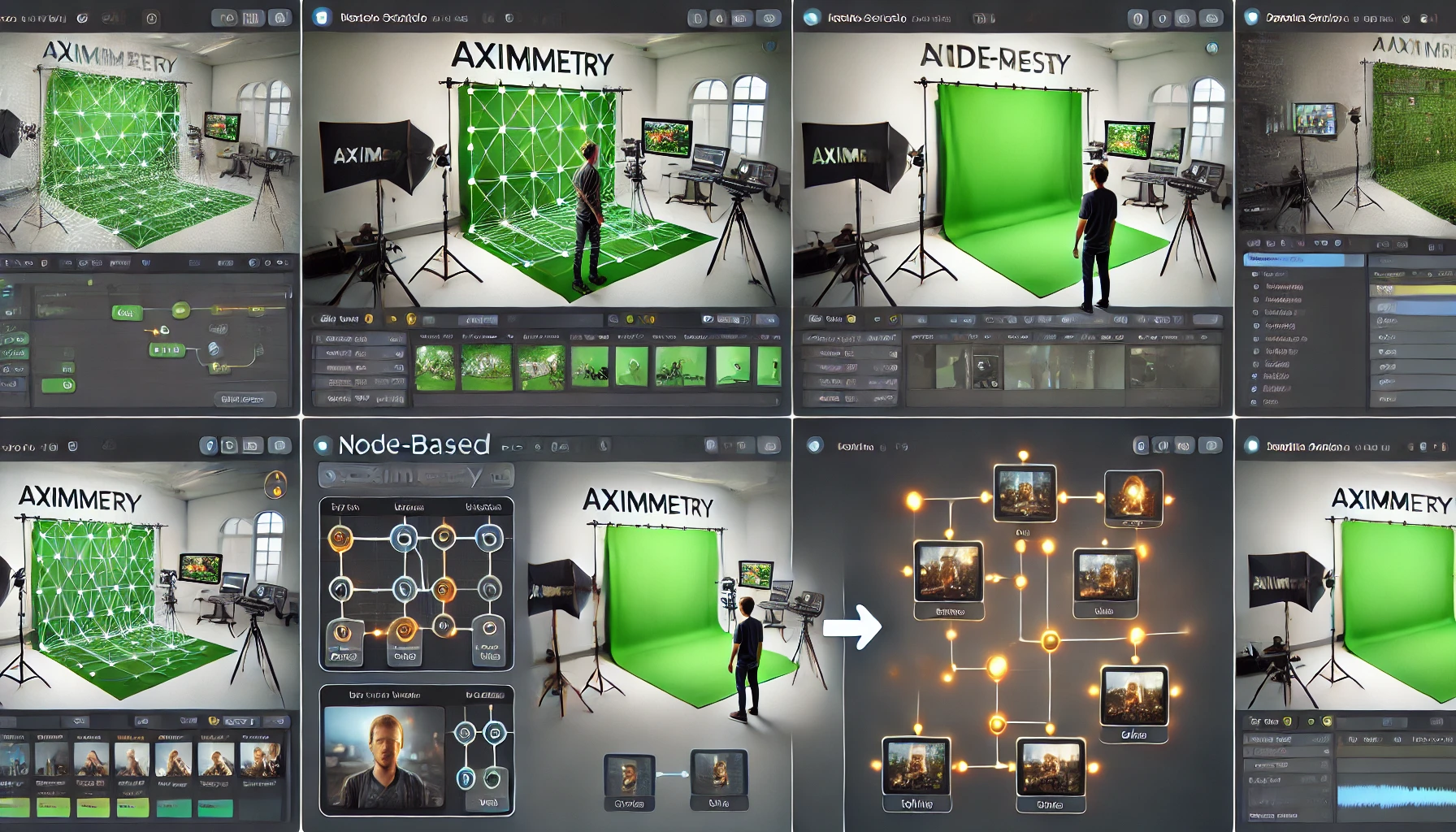
- green screen keying
- Add camera input (supports NDI or physical cameras).
- Color Matching Tool
Keyer node for chroma key adjustments to ensure background transparency.
- Overlay the keyed image onto the virtual background.
- Add Virtual Elements
- Upload 3D objects from the built-in asset library or custom sources.
- Color Matching Tool
Transform node to adjust the object's position, size, and rotation.
Dynamic Cameras and Tracking
- Virtual Camera Setup
- Add a virtual camera in the scene and control its motion path through nodes.
- Pair with camera tracking devices (e.g., Vive Tracker) for dynamic perspectives.
- Lighting Effects
- Add light source nodes (e.g., Spot Light, Point Light).
- Adjust light direction, intensity, and color to enhance scene realism.
Output and Integration
- Real-Time Preview
- Use Aximmetry's preview window to view effects in real time.
- Output to an external monitor or stream in real time via NDI.
- Integration with Unreal Engine
- Enable the Unreal Engine plugin to integrate Aximmetry with UE scenes for improved visual quality.
- After creating a scene in Unreal Engine, import it into Aximmetry for real-time control.
Advanced Features and Optimization
- Node Logic Programming
- Learn to design interactive logic using nodes, such as button triggers or animation controls.
- Performance Optimization
- Optimize rendering parameters in settings to reduce latency.
- Use low-poly models and efficient texture maps to ensure smooth performance.
If there is any infringement or copyright concern, please inform us. We will handle the related content within 24 hours. Thank you! Contact email: southcul@163.com

 简体中文
简体中文  English