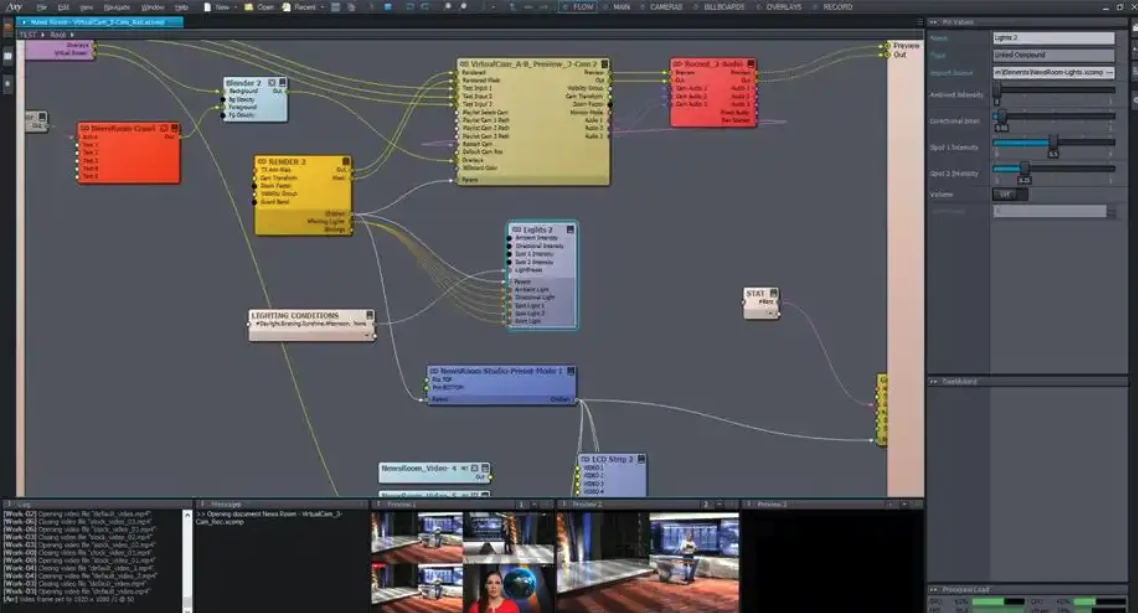
Real-time Virtual Scene Compositing
 Installation and Startup Failure
Problem Description:
- Errors or lag during installation, with prompts about missing system components (e.g., DirectX, .NET Framework).
- Software crashes or closes immediately upon startup.
Solution:
- Check System Requirements: Ensure the system is Windows 10/11 with a high-performance GPU (e.g., NVIDIA RTX series)1。
- Install Runtime Libraries: Manually install missing components, such as Microsoft Visual C++ Redistributable 和 .NET Framework 4.813。
- Run as Administrator: Right-click the installer or shortcut and select “Run as administrator”1。
- Clean Temporary Files: Use system tools or third-party software to clear disk junk files and avoid installation conflicts3。
Hardware Device Recognition Issues
Problem Description:
- Cameras, capture cards, or NDI devices cannot be detected.
- Poor green screen keying results (rough edges or light bleed).
Solution:
- Check Drivers and Interfaces:
- Install official drivers for the capture card (e.g., Blackmagic requires Desktop Video driver)1。
- Switch to a USB 3.0 port or use a powered hub to avoid insufficient power supply1。
- NDI Configuration:
- Ensure the device and computer are on the same local network, disable the firewall, or open NDI default ports (5353, 5960-5962)12。
- Optimize Keying:
- Adjust green screen lighting for evenness, avoiding shadows or reflections.
- Adjust chroma key parameters in the software: reduce “Hue Tolerance” and increase “Edge Softness”1。
Frame Lag or Rendering Crashes
Problem Description:
- Lag or delay during real-time rendering, or GPU usage spikes to 100%.
- Software crashes in complex scenes with a “GPU memory insufficient” prompt.
Solution:
- Reduce Rendering Load:
- Simplify high-precision models and 4K textures in the scene, prioritizing optimized assets1。
- Disable non-essential effects (e.g., motion blur, anti-aliasing)1。
- Enable Hardware Acceleration:
- Check NVIDIA CUDA or AMD AMF acceleration in settings1。
- Multi-Machine Collaboration:
- Use NDI or DeckLink to distribute rendering tasks to secondary machines, reducing load on the main machine1。
Tracking and Virtual Camera Desync
Problem Description:
- Virtual camera motion does not match the real camera's trajectory.
- Infrared tracking markers (e.g., OptiTrack) are frequently lost.
Solution:
- Recalibrate the System:
- Use Aximmetry's built-in tools to calibrate the tracking camera, ensuring the calibration board is correctly positioned1。
- Check the size and reflectivity of tracking markers to avoid interference from ambient light1。
- Frame Rate Synchronization:
- Unify the frame rate of the real and virtual cameras (e.g., 30fps or 60fps)1。
- Signal Synchronization:
- Sync multi-device clocks via Genlock or Timecode1。
Audio Delay or Device Not Recognized
Problem Description:
- Audio and video are out of sync, or the microphone cannot be detected.
Solution:
- Reduce Audio Buffer: Adjust the buffer to 256-512 samples in software settings to reduce latency1。
- Use a Professional Sound Card: Install ASIO drivers (e.g., Focusrite Scarlett series) to improve stability13。
- Check Device Permissions: Allow Aximmetry to access the microphone and speakers in system settings2。
Frequent Software Crashes or Unresponsiveness
Problem Description:
- Software suddenly crashes during operation or becomes unresponsive for extended periods.
Solution:
- Analyze Log Files: Check
C:\Users\[Username]\Documents\Aximmetry\Logs for error logs to locate specific module faults13。
- Reset Configuration Files: Delete the
Documents\Aximmetry\Config folder to restore default settings1。
- Update Software Version: Visit the official website to download the latest version and fix known bugs13。
License Activation Failure
Problem Description:
- Prompts “Invalid license” or unable to connect to the server.
Solution:
- Check Network Environment: Disable VPN or proxy to ensure network connectivity1。
- Reactivate License: Reset and reactivate via Aximmetry License Manager1。
- Contact Official Support:

Advanced Maintenance Tips
- Regularly Clean the System: Use tools like CCleaner to clear temporary files and registry entries, avoiding resource usage3。
- Data Backup: Regularly back up key project files to an external hard drive or cloud to prevent accidental loss2。
- Hardware Monitoring: Use MSI Afterburner to monitor GPU temperature and load, preventing crashes due to overheating1。
If there is any infringement or copyright concern, please inform us. We will handle the related content within 24 hours. Thank you! Contact email: southcul@163.com

 简体中文
简体中文  English